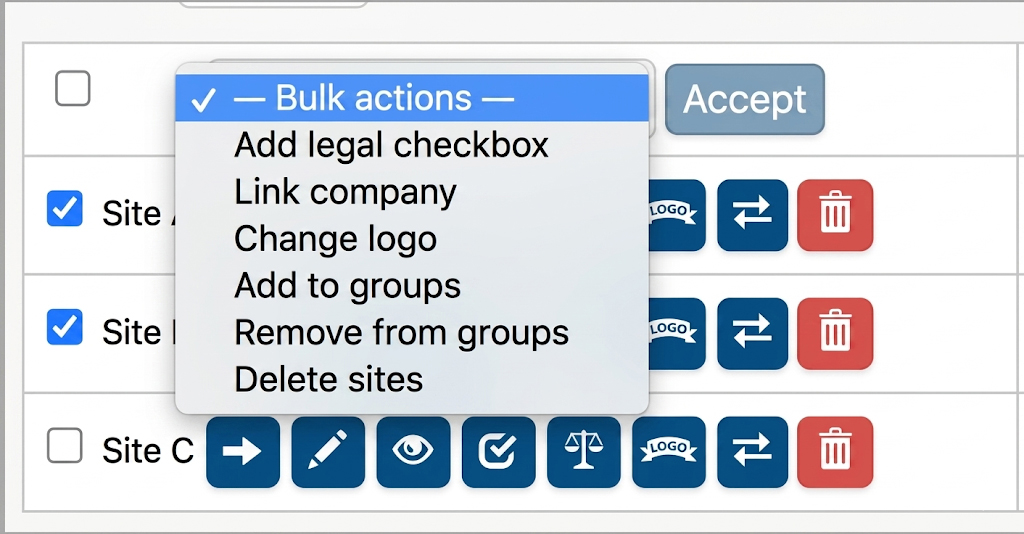
Displays a list of all sites belonging to the chain. From this view, you can select one or multiple sites to perform bulk actions, such as updating the logo for all of them, editing legal texts, etc.
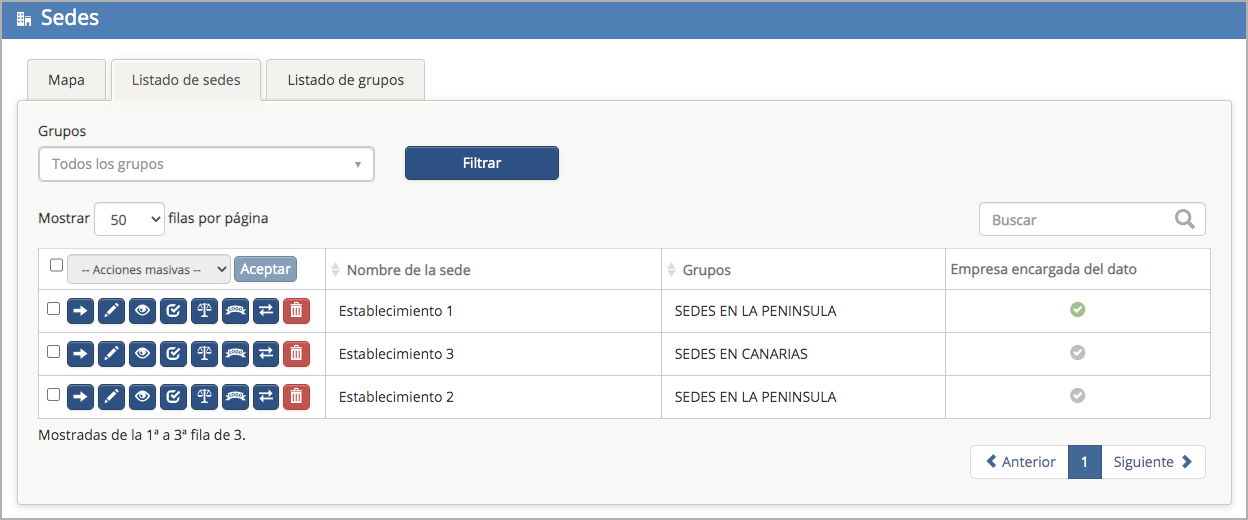
Options:

By default, the list displays all «sites» belonging to the «chain.» The «Groups» dropdown menu allows you to select one or multiple site groups for viewing.

The Site List displays all sites with the following columns:
-
-
- Bulk Actions: Multiple sites can be selected to perform collective bulk actions on them.
-
-
-
- Site Name: The name of the site.
-
-
-
- Groups: Name of the group the site belongs to, if applicable.
-
-
-
- Data Processor: If the site has an assigned legal representative for data processing, a green validation check mark will appear.
-
-
-
- Action buttons for each site:
-
 Access the site. Site Environment
 Edit site: Accesses the site settings and displays the editing options, such as address, logo, billing information, legal texts, etc.
 Accesses the site and opens the «Legal» option within the «Configure site» menu to view or edit its legal aspects. «Legal Aspects»
 Add a legal checkbox, which will appear on the site’s captive portals. You can add as many legal checkboxes as desired and define their specific legal text. You can also determine whether they are mandatory for browsing, their display order, different languages, or if they should be checked by default.
 Create a company and link it to legal conditions. By linking a company to legal conditions, its details are added to the captive portal’s legal texts. You must define whether the company will be the CONTROLLER or the PROCESSOR of the data. The legal texts for the «Terms of Use» checkboxes will be automatically updated with the newly entered data.
 Change site logo: Changes the site’s logo. This logo can be used as the default image when creating captive portals. «Widgets»
 Add the site to an existing site group.
 Delete the site. This option is only visible to specific users with an advanced user profile.
Bulk actions for multiple sites or site groups:
Multiple sites can be selected  so that actions can be applied to them simultaneously or as a group.
The available «bulk» actions are: