
When accessing a specific site, you enter its dedicated Environment. The SITE dropdown menu displays management and support options relevant to the selected location.
-
-
-
PIN Creation and List: Displays the initial Site view, featuring the primary options: «Create PIN» and «PIN List.» This view is designed for quick and easy access key generation upon entering a site environment.
-
Service Sales: Lists transactions if a paid WiFi service is offered, including data such as: service type, price, VAT, registration date, and total revenue.
-
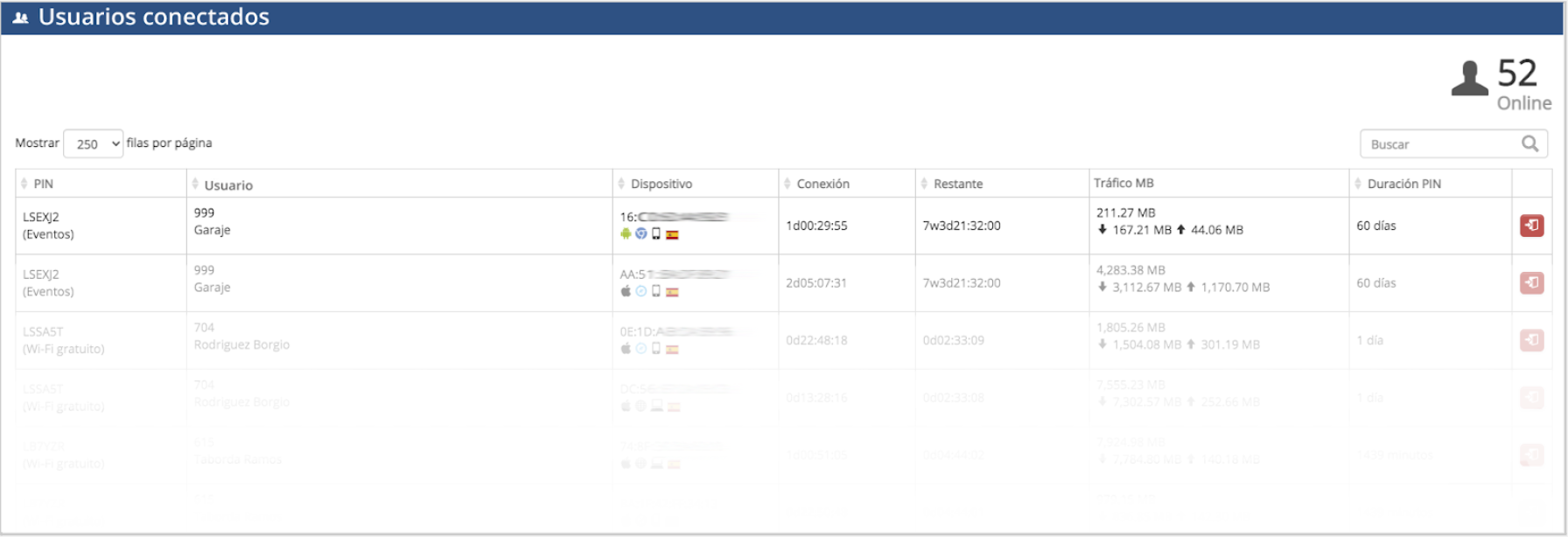
Connected Users: Displays a list of connected end-user devices, including: IP addresses, MAC addresses, PINs, device type, language, operating system, data consumed, and PIN duration.
-
-
 Allows manually dropping a user’s connection.
-
-
- Network Devices: Displays the list and status of devices forming the network. Actions include checking history, updating status, or viewing them on a floor plan.
-
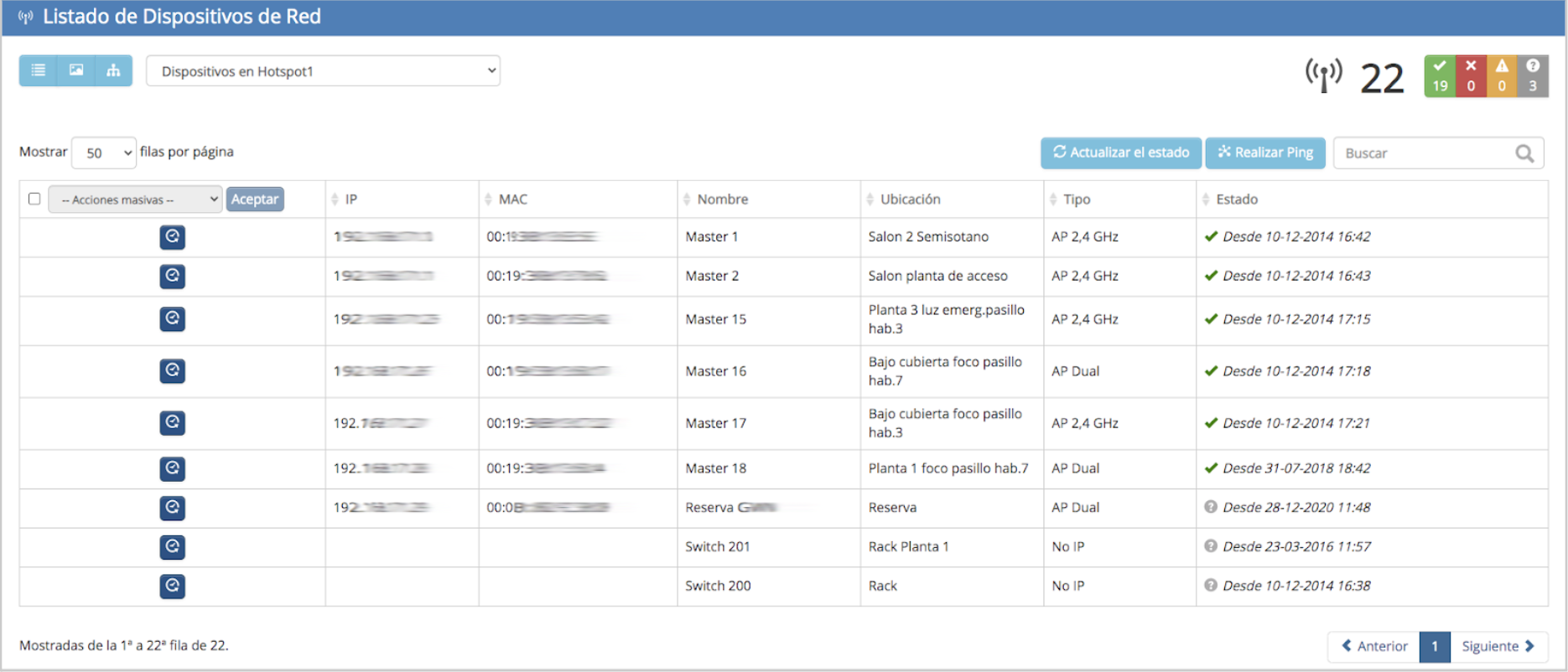 Network Device List Indicators
 Number of connected devices.
 Active devices
 Inactive devices
 Devices with data loss
 Devices in an unknown state
 View device status logs
Refresh data and perform a PING to measure performance
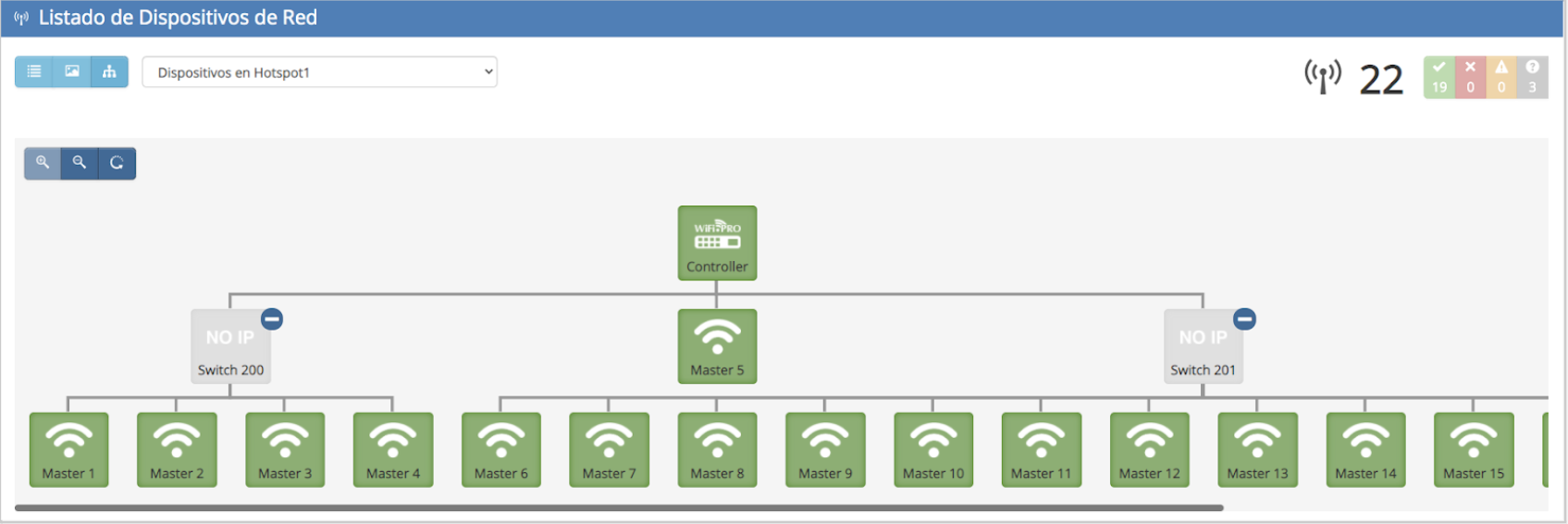 Network Tree/Dependency List.
-
- Internet Status: Displays real-time status of the internet line(s), including bandwidth and latency. Historical data can be queried, charts can be printed, or reports downloaded in PNG, JPG, PDF, or SVG formats.

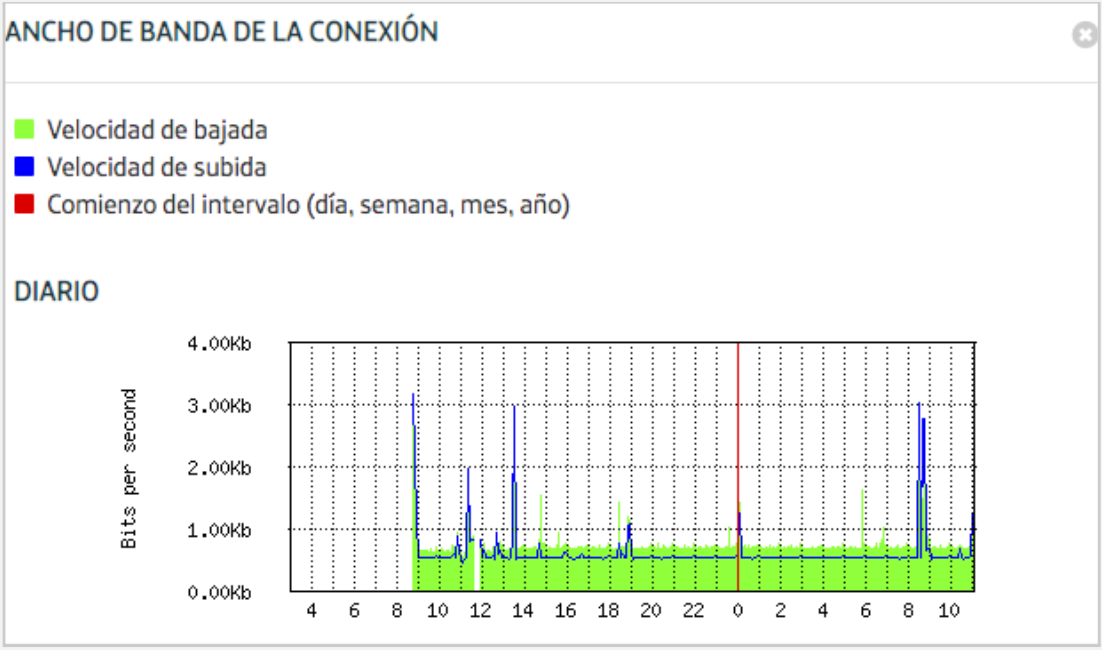
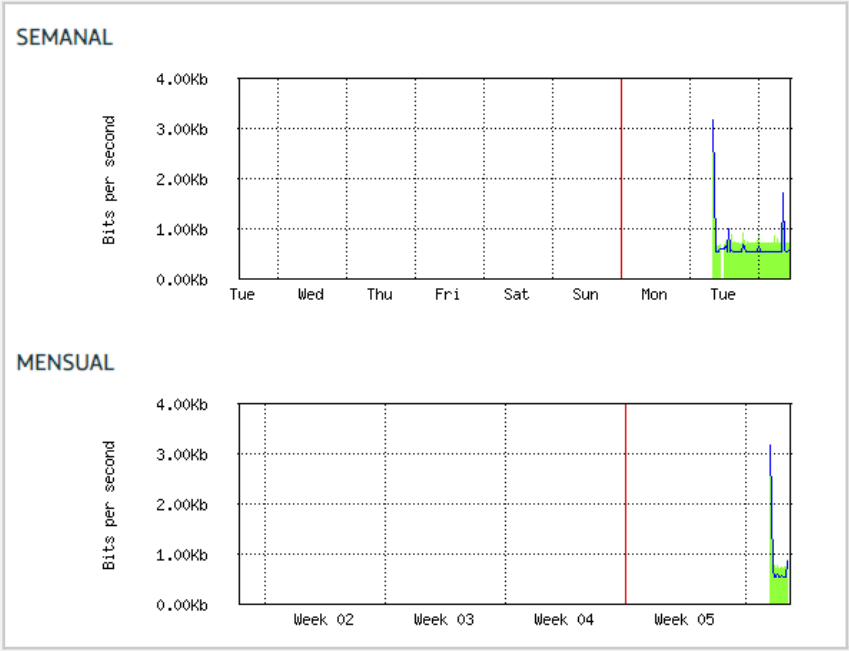 Internet Status:
-
- Roaming: Configures options to allow «roaming» between sites belonging to the same chain. This allows a user to connect using the same PIN at any participating site. The service profile (bandwidth, limits) remains as originally assigned, though specific aspects like upload/download speeds or load balancer priority can be adjusted.
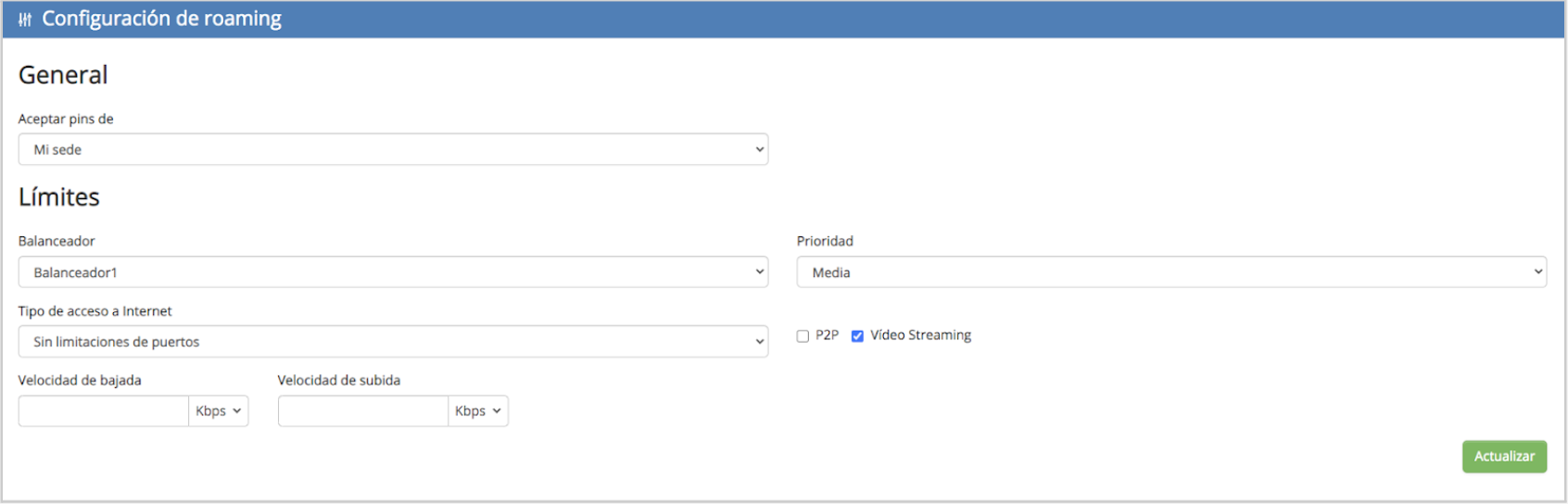 Roaming configuration
-
- CRM: The Platform includes a proprietary email management tool (requires activation). User email addresses collected during login can be used for informational purposes. The CRM allows for email template design and scheduled delivery to target groups.
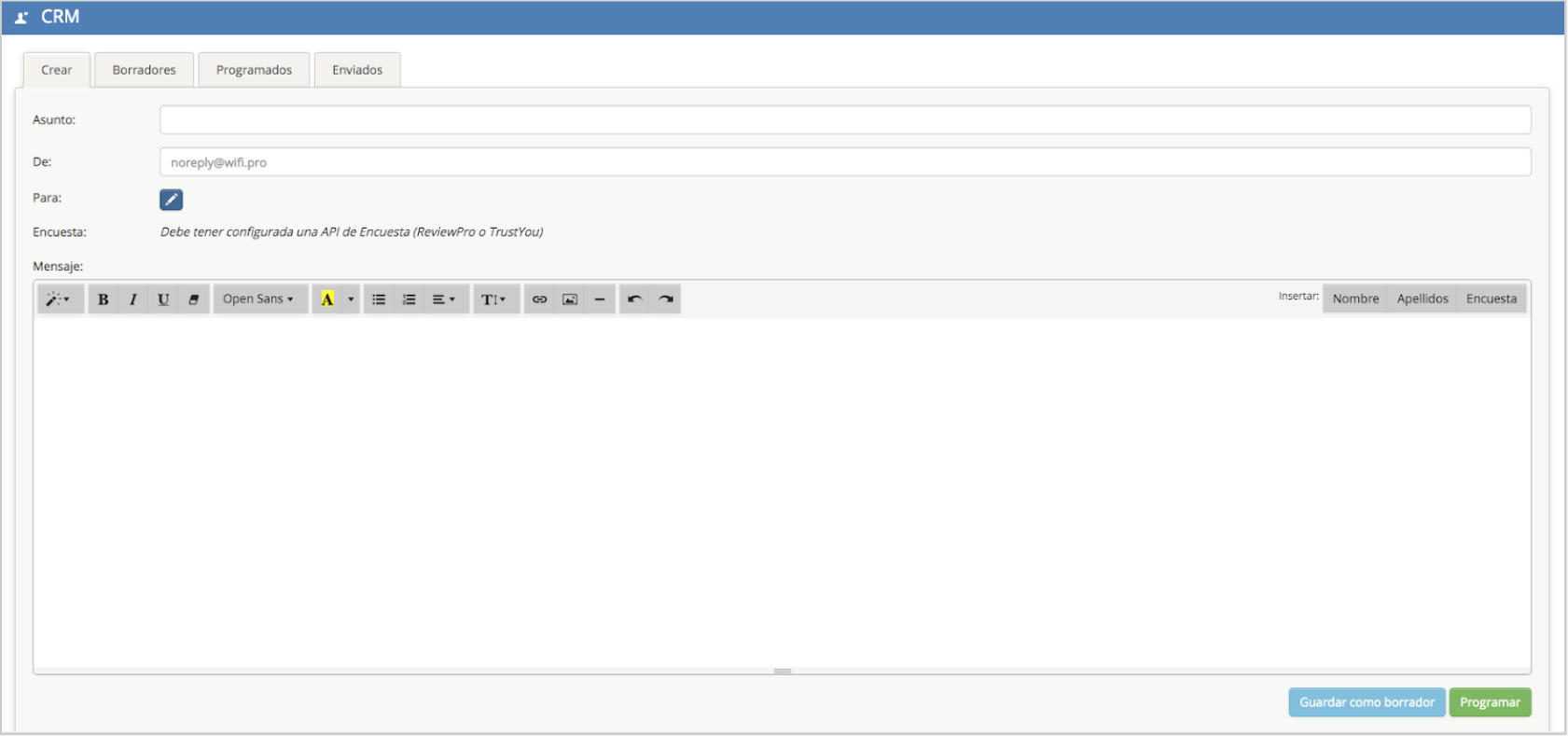 CRM general views – More >>
-
- Configure Site: Access settings specific to the selected site. The options are divided into:
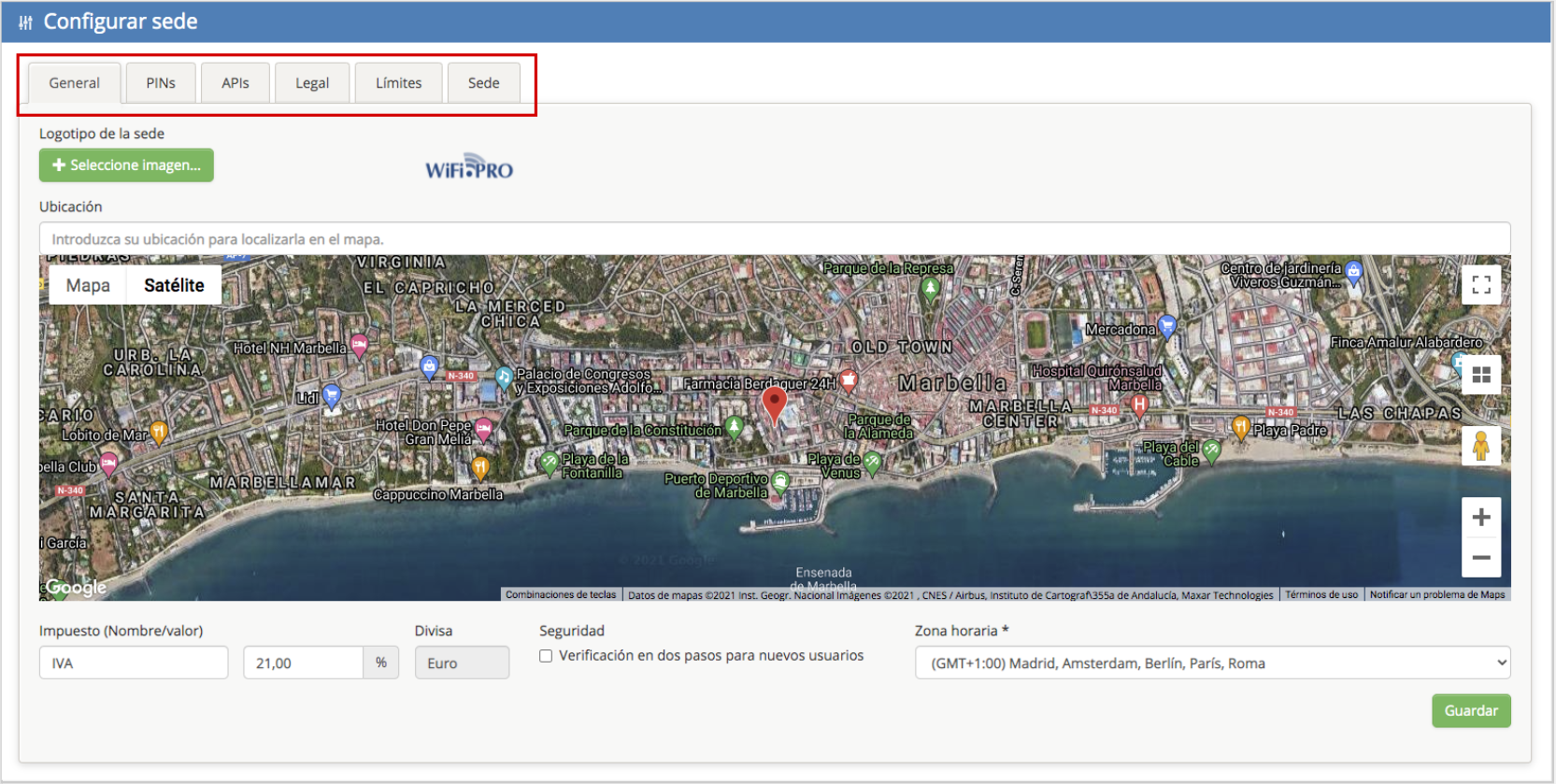
General | PINs | APIs | Legal | Limits | Site
General: Allows changing the site’s logo, which appears in the captive portal when using the Logo Widget. It is recommended to use the site’s corporate image to enhance the portal’s appearance. 
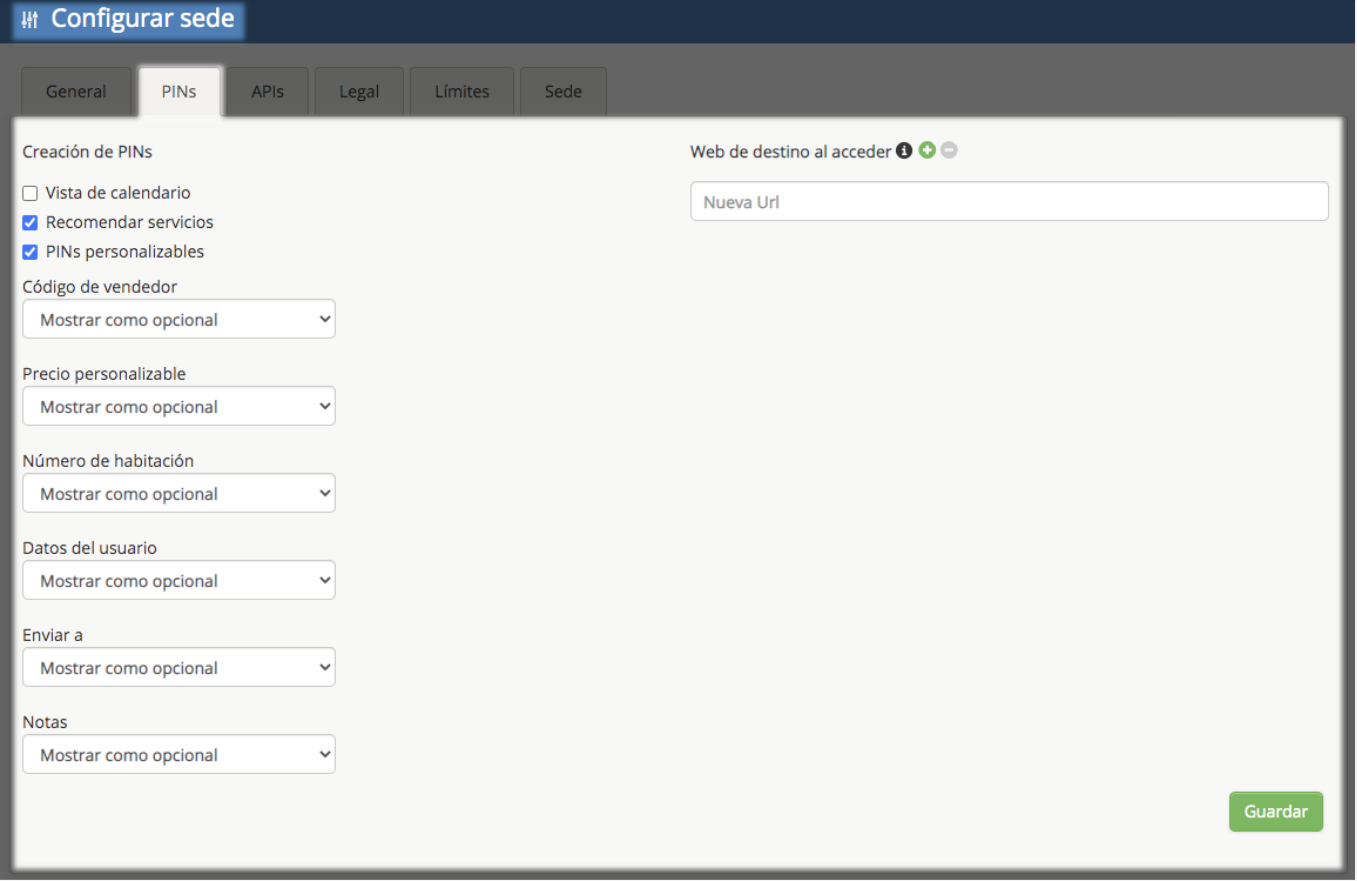
PINs: Defines the fields and options shown during PIN creation. You can set a redirect URL after login (or multiple URLs for random redirection). Additional fields can be toggled:
The remaining options can be toggled on or off to determine whether they appear during PIN creation. For example, the «SEND TO» option activates a field to request an email address, where the PIN will be sent once it has been generated.
Configuration Site / Pins
-
-
Vendor Code: Show/hide a field for the employee creating the PIN.
-
Customizable Price: Show/hide a field to enter a specific price, overriding the default service price.
-
Room Number: Useful for hotel environments; show/hide a field for guest room numbers.
-
User Data: Define if user information fields are shown and if they are mandatory.
-
Send To: Show/hide a field for an email address where the generated PIN will be sent.
-
Notes: Show/hide a field for additional administrative notes.
-
-
-
- APIs: Through API integration, WiFi.PRO can share data with other platforms for email marketing, form tracking, and promotions. Supported: Mailchimp, Reviewpro, Fideltour, Trustyou, PushTech, Sendinblue, Salesforce, etc. Integrations >>
-
-
-
- Legal: Manages terms and conditions acceptance checkboxes and legal texts for the captive portal. You can add multiple company entities and define if checkboxes appear collapsed or expanded by default. Legal Aspects.
-
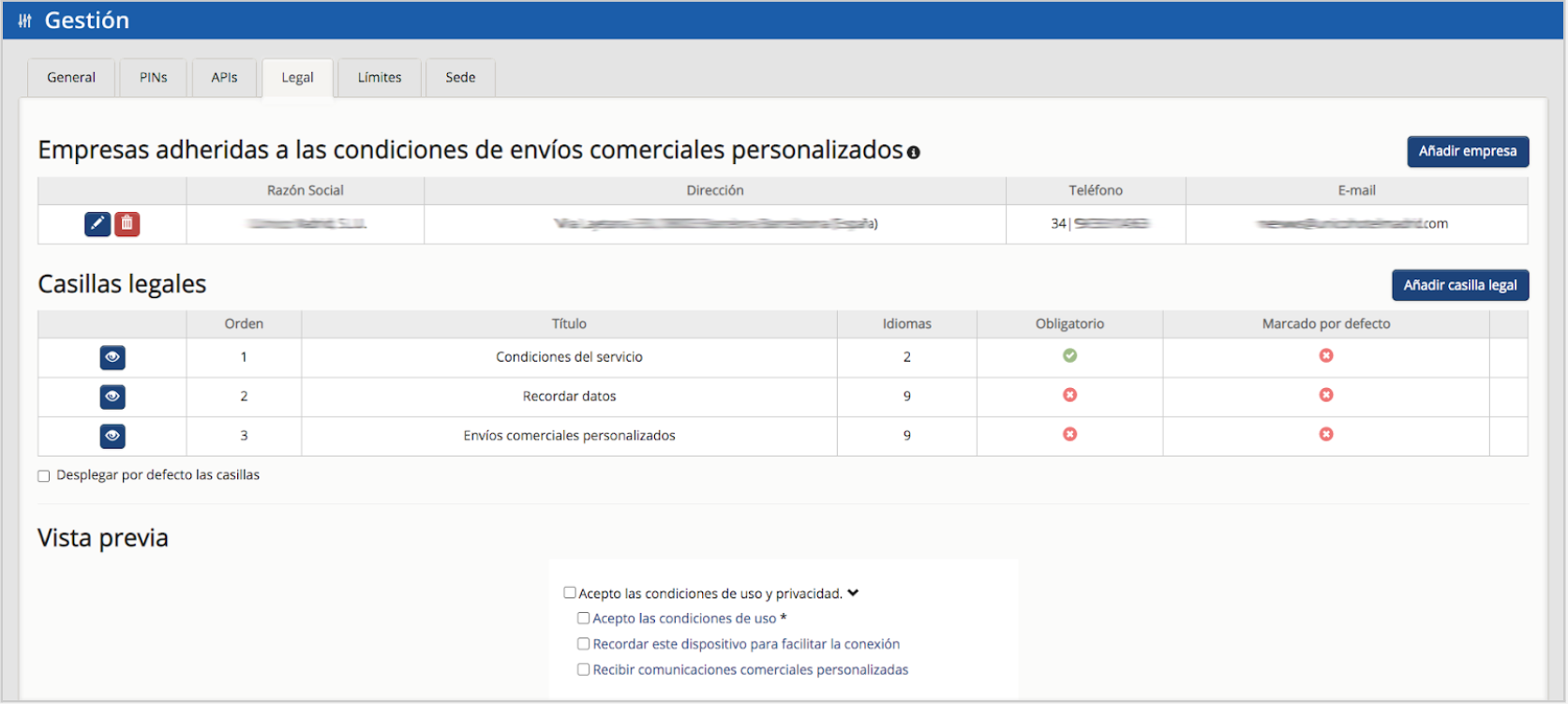 Term and conditions panel views
-
-
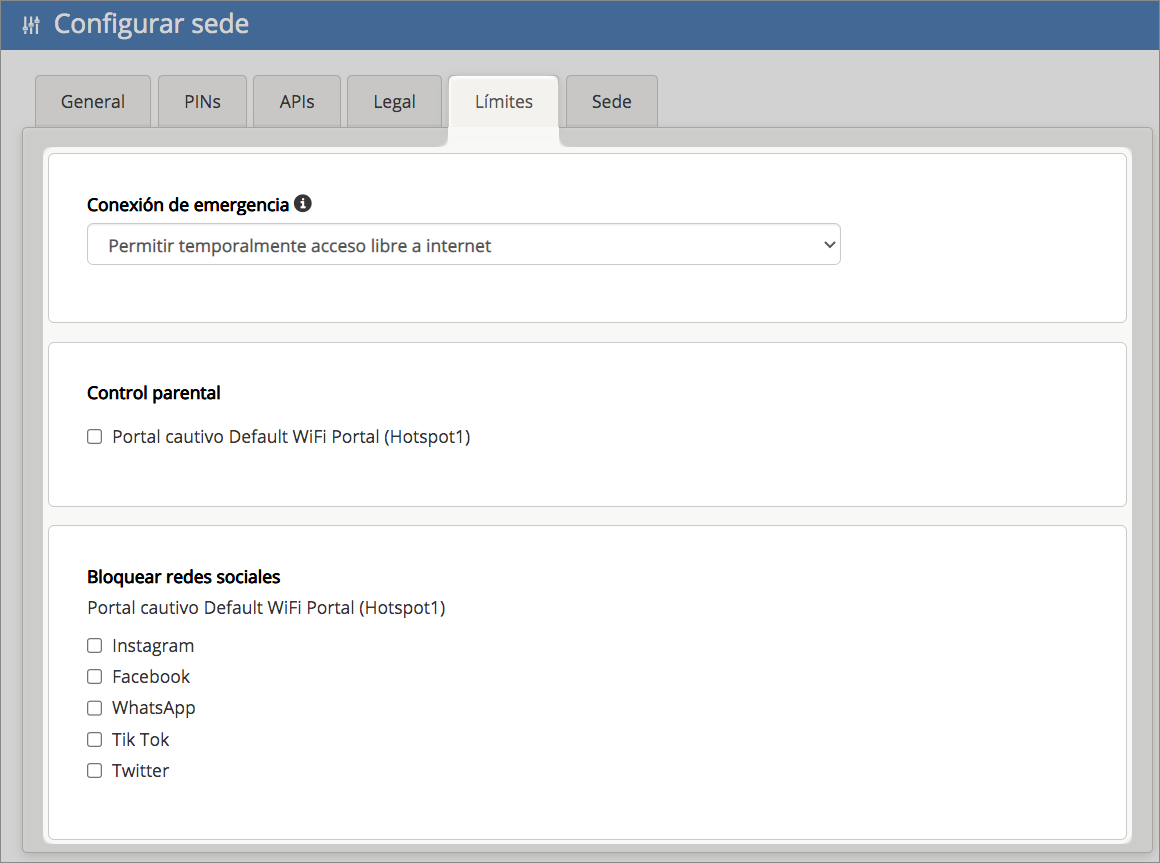
- Limits: Configures fallbacks and restrictions:
-
It also allows you to edit the message displayed on devices that are unable to connect to the WiFi in the event that the maximum number of allowed connections has been reached.
Configurar sede / Límites
-
-
Emergency Connection: Defines if users can connect automatically without the captive portal if the platform experiences connectivity issues.
-
Parental Control: Activates filtering to prevent access to explicit or violent content.
-
Block Social Media: Specifies which social networks are restricted.
-
-
-
- Site: Displays a summary of site data: logo, location, address, and billing information.
-