
The form portal is a second page that is displayed after the captive portal. Consequently, forms can only be shown during the «Login» process.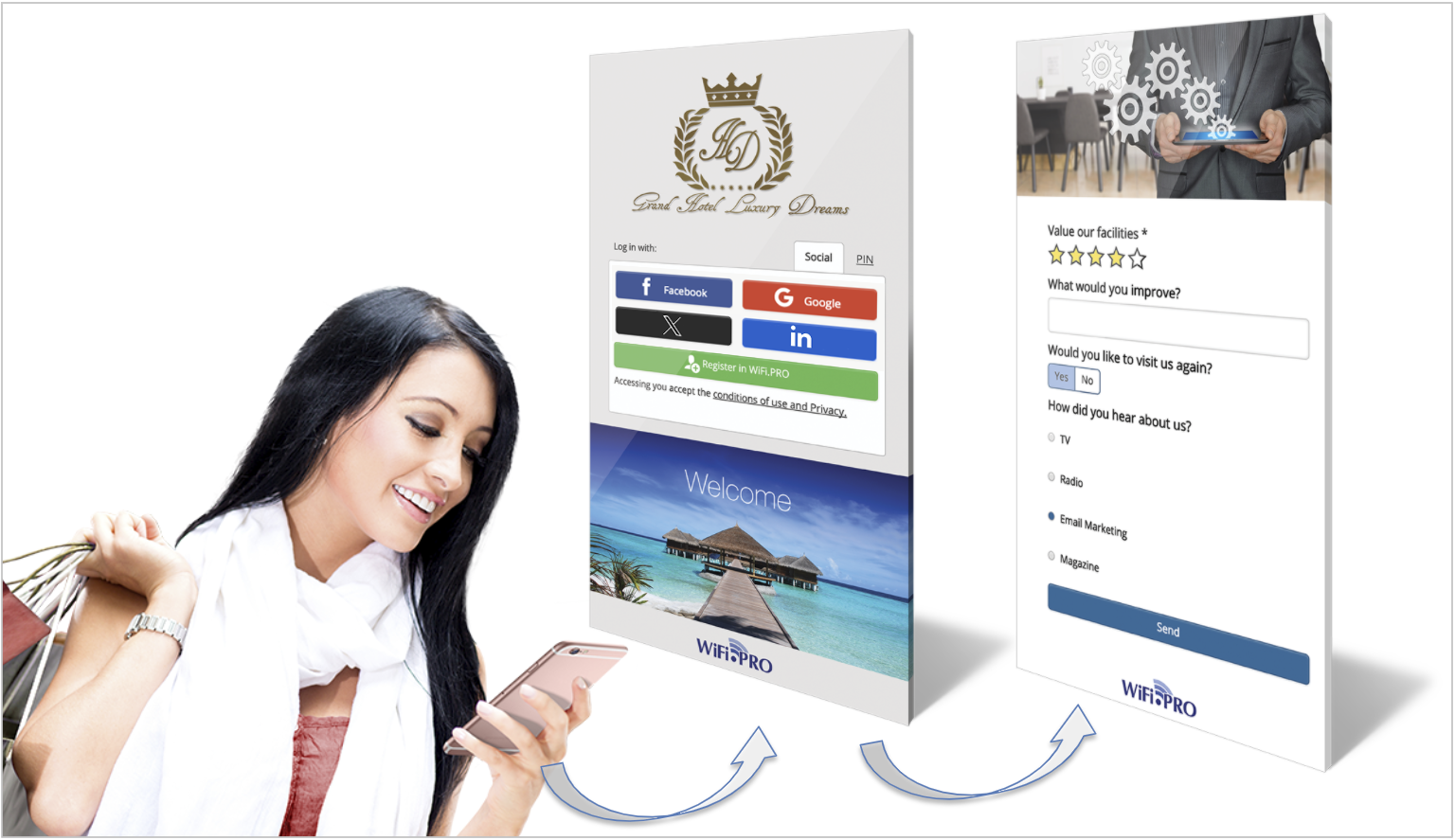
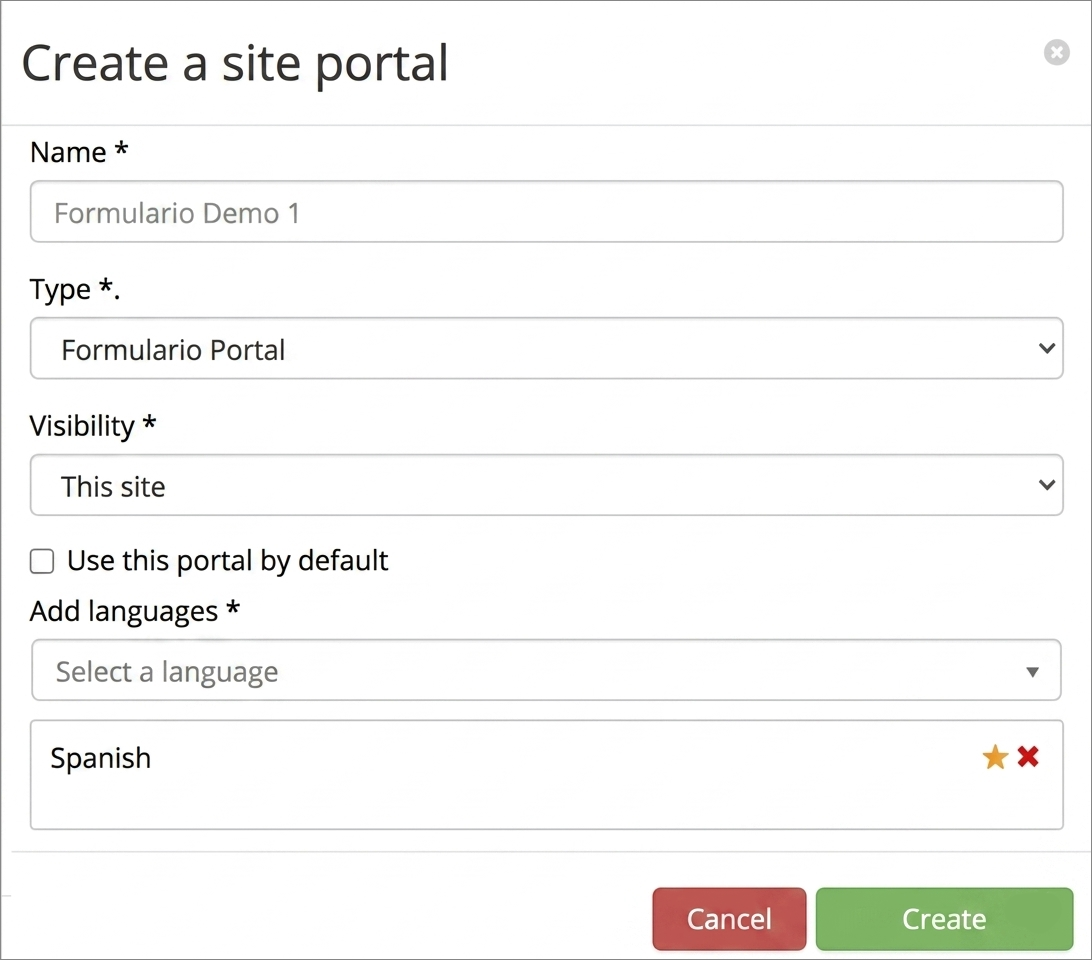 Form Portal Creation
Similar to the WiFi Portal creation.
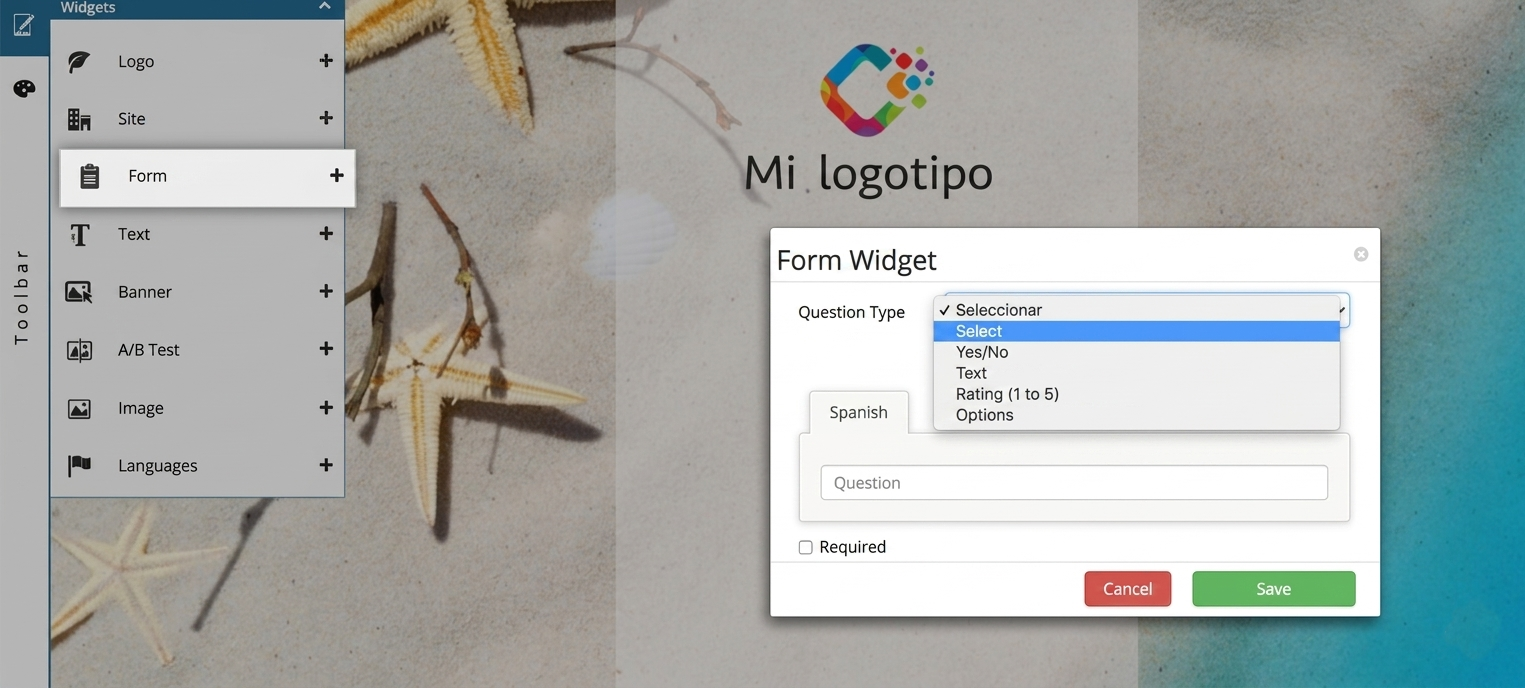 Form Portal Design Panel
The Form Widget displays the panel where questions are created.
The Form Portal design panel includes a Toolbar, but with fewer widget options and without Plugins. Dragging and dropping the Form Widget opens the panel to populate the form content. There are four types of questions, and you can create as many as needed:
- Yes / No: Adds a question with two possible response options: Yes or No.
- Text: Adds a question with a text field for writing reviews or feedback.
- Rating (1 to 5): Adds a question answered via star ratings.
- Options: Adds multiple-choice options for a single question.
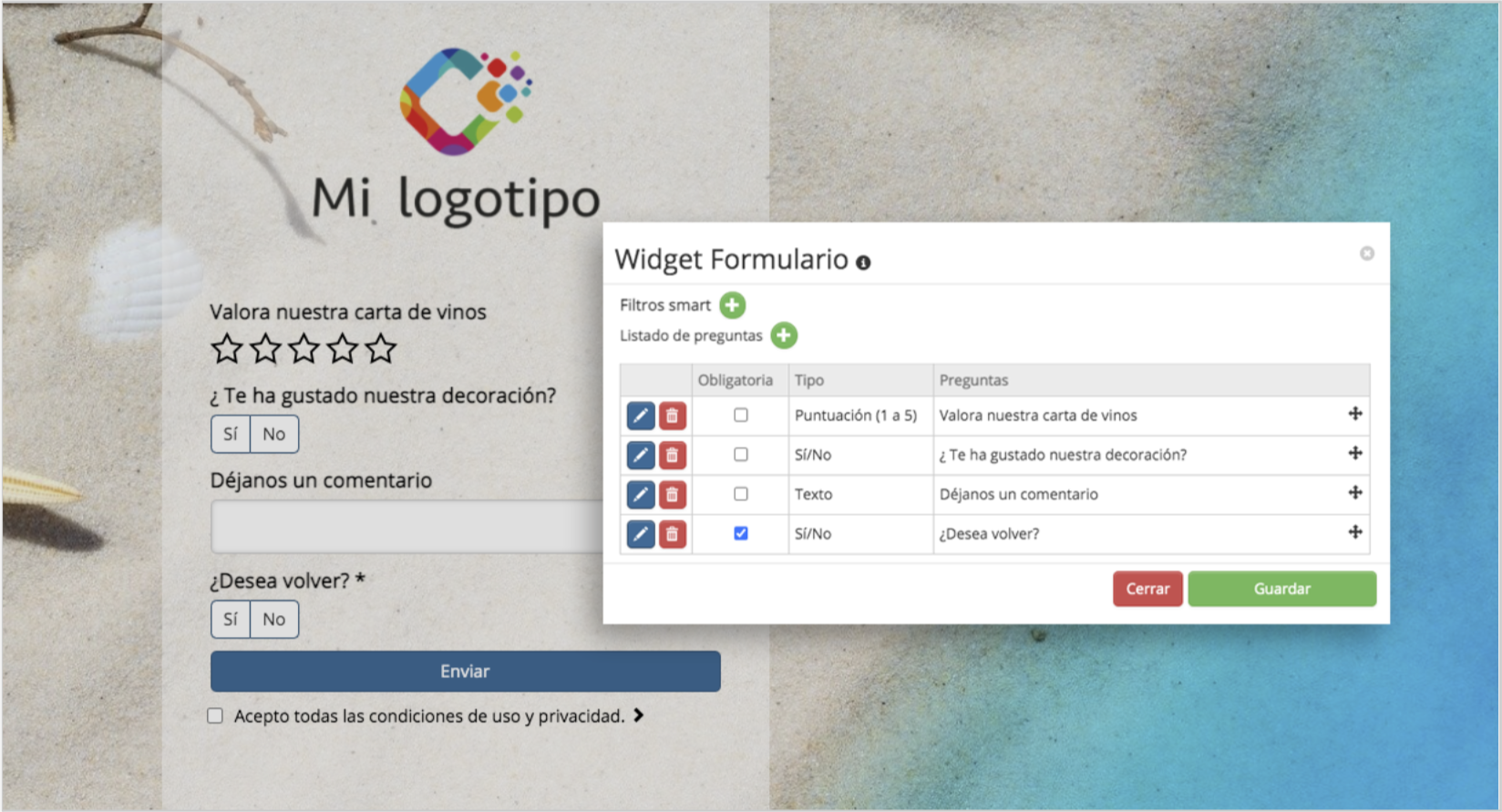
Form Creation: You can add as many questions as necessary. You can set the order of the questions using drag and drop.
The form portal can be subject to Smart Filter rules. A smart filter ensures a form is only displayed if pre-established requirements are met. For example: a specific date, the user’s gender, age, etc. You can have several forms created, and each will appear only when its Smart Filter conditions are satisfied.*
* Smart Filters are covered in more detail in the section:
Smart WiFi. Marketing Tools.
Uses of the Form Portal
-
- Automatic activation upon creation
By default, when a form portal is created, it is activated.
- Automatic activation upon creation
-
- Activation from the Portal List
From the tools menu, access the «Portal Management» section. The «Form Portal» tab will display only form-type portals. You can create as many as needed, but only one can be active at a time. This active portal will be the one shown during the user’s «Login» process.
- Activation from the Portal List
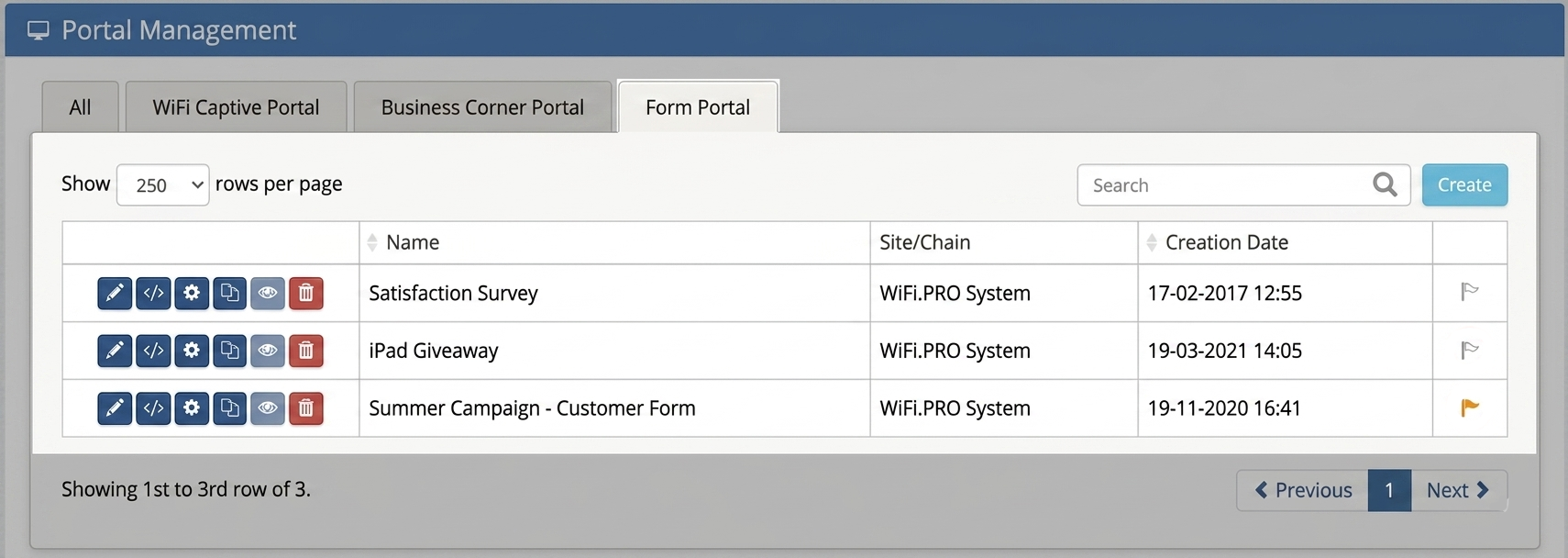
 Deactivated form portal icon
Activated form portal icon
Forms with Third-Party Integrations
There are specialized platforms for managing forms and surveys designed to improve guest experiences and boost rankings on review sites. WiFi.PRO integrates with several of these platforms, allowing forms to be sent via email using the WiFi.PRO CRM tool.
Integrated review management platforms: ReviewPro and TrustYou.
For instructions on using forms with ReviewPro, visit:
ReviewPro, activation and uses
-
- Other Types of Forms
All types of forms can be sent via scheduled emails from WiFi.PRO using the CRM tool. Simply attach the link to these forms, which could be hosted on a website or even use Google Forms.
- Other Types of Forms