This section provides functions for managing end-user connections, such as creating and managing PINs, monitoring connected users, viewing logs, authorizing devices for automatic connection, and consulting the user database.
-
- PINs: Opens the window where PINs are created, either individually or in groups. It also displays all PINs created to date along with their activity, features, and available actions, such as: viewing PIN data, printing or exporting to a PDF document, editing, or deleting. There are two types: WiFi, for standard services; and Trial, typically used for demonstration services or short-term access.
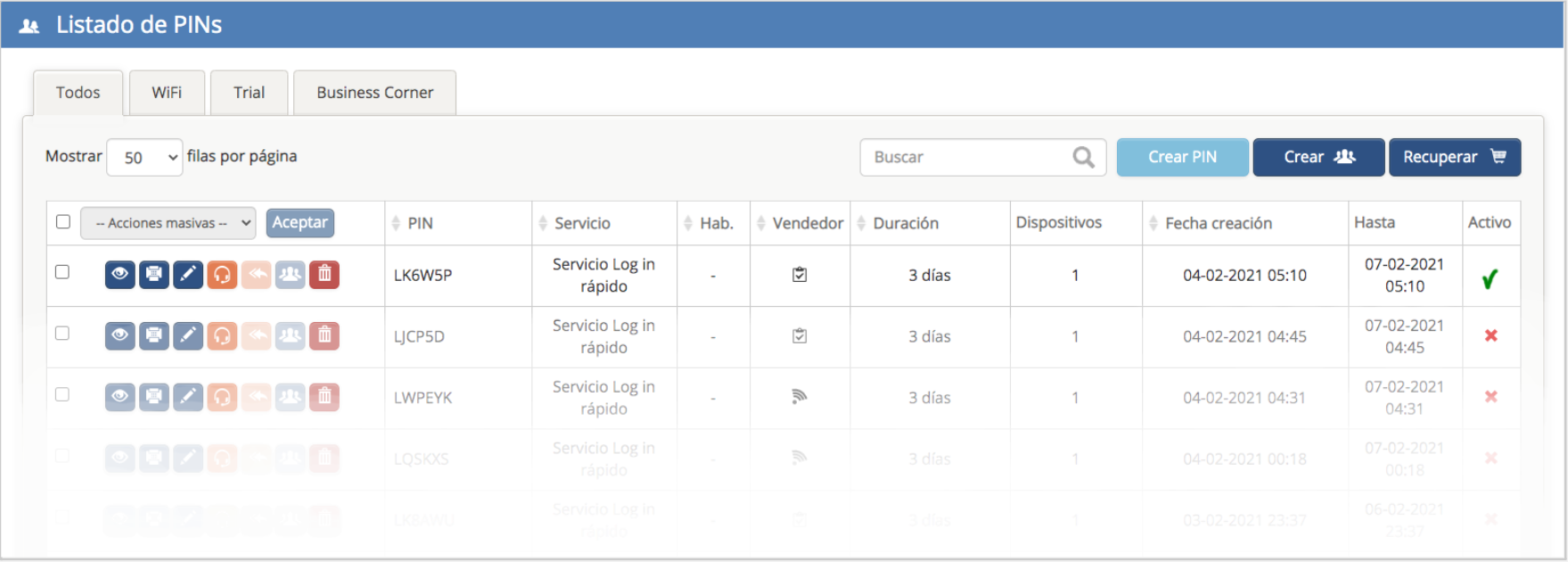 PINs list. Create Pins.
 Displays PIN data: Includes the key, status, features, and limitations, as well as the history of devices that connected using the PIN and their data consumption metrics. From this option, you can also edit or print the PIN.
 Accesses the menu to manage the paper ticket layout that is printed and given to the user with their access PIN.
 Allows you to edit the PIN and modify its details: duration, service type, user data, etc.
 Allows you to open a support ticket that is sent directly to the technical support team.
 Provides access to the window for managing refunds in the case of paid PINs.
 Consult a PIN when dealing with Group PINs.
 Delete Pin
 Create PIN
 Option to create multiple PINs
 Provides access to the window for managing refunds in the case of paid PINs.
-
- History: Displays a log of all created PINs that are no longer active.
-
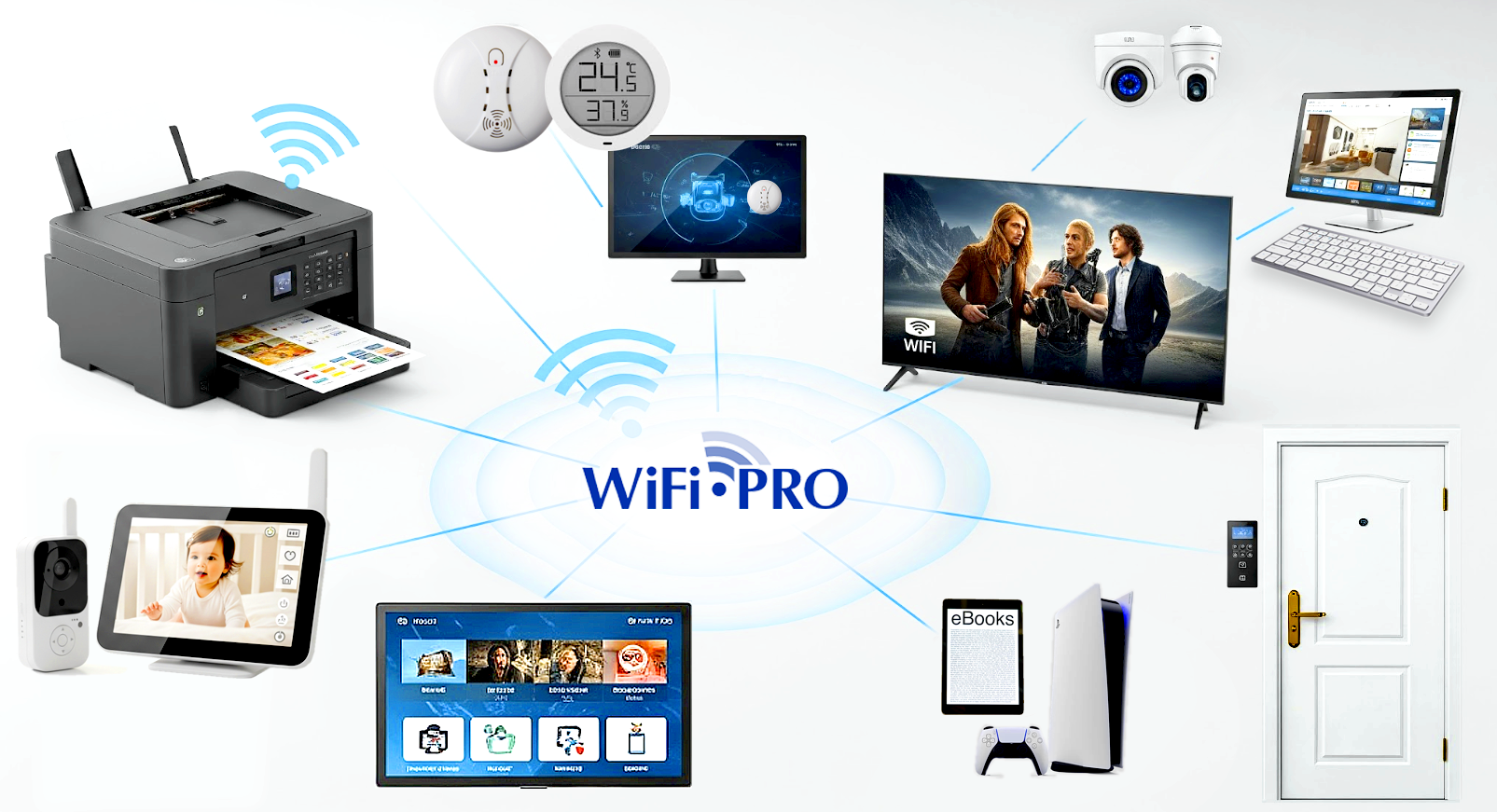
- Authorized Devices: Displays the list of authorized devices. It allows the registration of one or multiple devices for automatic WiFi connection, as well as defining the specific service features they will receive. The MAC address of each device is used as the unique identifier.
-
- The Authorized Devices feature allows hotels to offer an automatic and secure WiFi connection for equipment that cannot use a captive portal, such as gaming consoles, baby monitors, or smart assistants. This enhances the guest experience by allowing them to connect their personal devices easily and facilitates the connection of printers, point-of-sale (POS) terminals, or other operational equipment for hotel staff without interruptions.
-
- Blocked Devices: Displays the list of blacklisted devices. It allows you to block devices to prevent them from connecting to the WiFi network.Databases: Displays the database containing information of users who have connected to the WiFi. Fields such as first name, last name, email, date of birth, gender, country, language, etc., can be queried over time and exported. Data can be filtered by site and a specific date range can be defined for the query.