
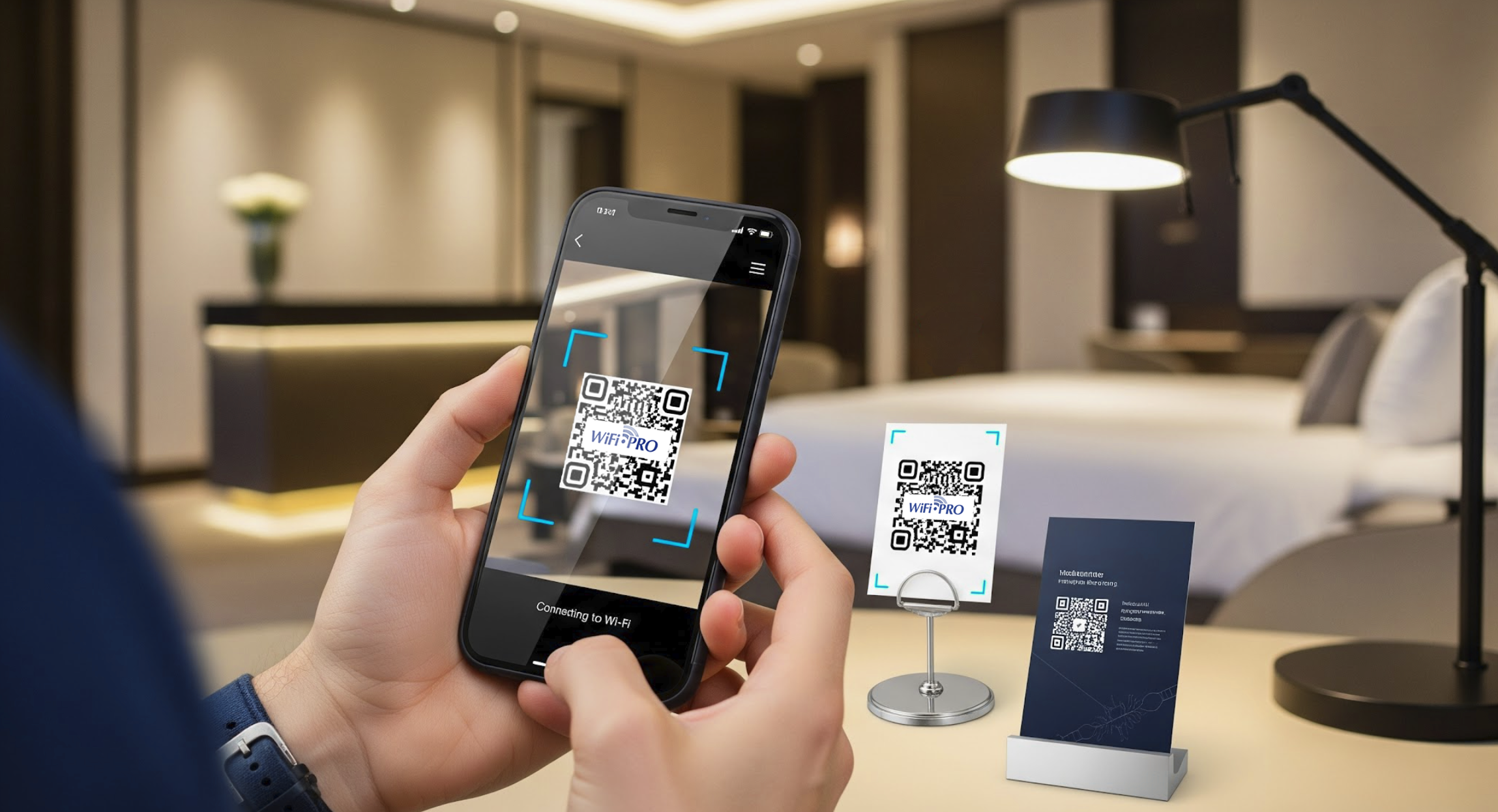
The WiFi.PRO QR Code functionality allows you to generate unique QR codes directly from the platform, ready to download or print and place on signage, brochures, rooms, or customer service points.
These codes redirect directly to the captive login portal, facilitating user access to the WiFi network without the need to ask for help or manually enter web addresses.
Benefits of using QR to connect to WiFi
Quick and easy access: the user only needs to scan the code with their device’s camera to begin the connection, with no additional steps.
-
- Reduced load on reception or customer service: especially useful in hotels, cafes, or shopping centers, where it avoids having to repeatedly explain how to connect.
- Modern and professional image: the presence of QR codes on the establishment’s signage or materials reinforces technological identity and service convenience.
- Full customization: QR codes can be downloaded in different formats and integrated into posters, digital menus, tickets, or promotional brochures.
- Frictionless experience: eliminates errors when typing addresses or passwords and improves user satisfaction from the very first contact.
How to use de QR tool
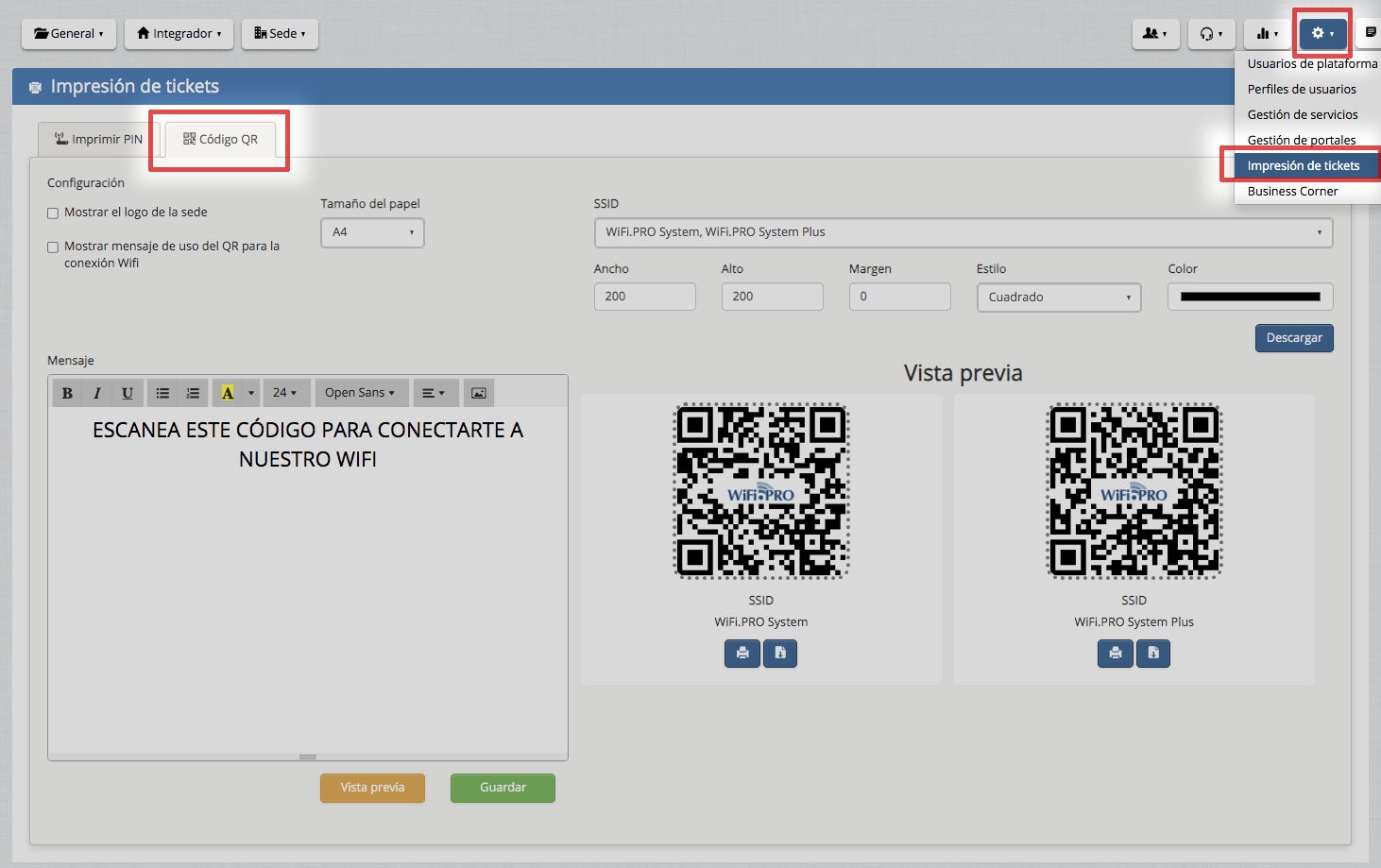
Access to the tool
In the top menu, click on the settings icon. ⚙️.
Select the option “Ticket printing”.
Within this module, open the “QR Code” tab.
Configuring the QR
In this section, you can customize the appearance and content of the QR code before downloading or printing it:
Show site logo: when activated, the QR will include the logo configured for the site.
Show usage message for the QR WiFi connection: adds a brief explanation or message at the bottom of the printout, useful for indicating to users how to connect.
Message personalization: In the text box below, you can write a personalized message that will be displayed next to the QR code. The text editor allows you to apply bold, italics, underlining, change the font size, or the font type (by default, Open Sans).
For example: SCAN THIS CODE TO CONNECT TO OUR WIFI
Paper size: select the output format (for example, A4) according to the type of print or poster where it will be used.
SSID: Displays the available networks, previously created, to link them to a QR code. From this section, SSIDs are not created or edited; they are only assigned to the QR.
Dimensions: the Width and Height fields allow you to adjust the size of the code in pixels.
Margin: defines the space around the QR within the printing area.
Style: choose the shape of the QR (for example, Square).
Color: select the color of the code to adapt it to the poster design or the site’s branding.
Preview and download: The right panel shows a real-time preview of the generated QR codes.
Each QR includes its identifying SSID.
Possible actions:
Print the QR directly.
Download it in image format to integrate it into communication materials.
Before saving final changes:
Click on “Preview” to verify the design.
Press “Save” to keep the current configuration.