
The Styles bar allows you to customize the captive portal visually. It is accessed via the button  in the portal editor menu. This will display all available design options.
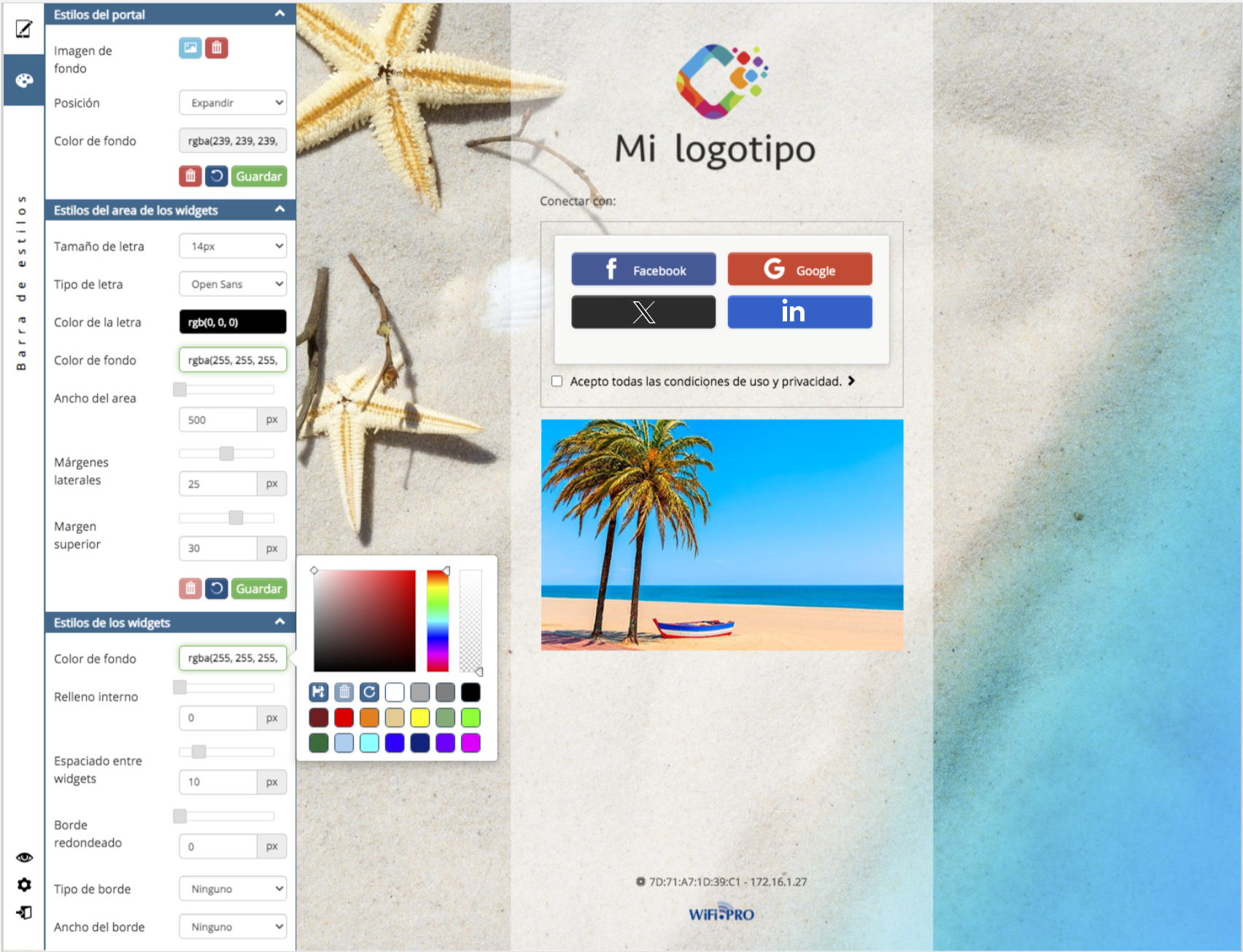 In the Styles Bar, you can manage font sizes, colors, spacing, background images, and more.
There are four sections available to manage different aspects of the captive portal:
- Portal Styles
This block allows you to customize the portal’s background area. Its options are:-
- Set a background image: Supports JPG, GIF (static and animated), PNG, or BMP. Maximum file size supported is 10 MB.
- Configure image position: (Centered, expanded, or tiled).
- Set a background color: (Using RGB parameters or the integrated color picker).
-
- Widget Area StylesAllows you to customize the area and common elements where the different portal widgets will be located. Its options are:
-
-
- Set font size for titles and buttons.
- Change font type for titles and buttons.
- Change font color for texts (titles and captions).
- Change the background color of the area.
- Set the area width.
- Set side margins: (Spacing between the area edges and the widget edges).
-
- Widget Styles
Allows you to customize individual widgets. Its options are:
-
-
- Set a background color.
- Specify internal padding: (Spacing between the widget border and its content).
- Define vertical spacing between different widgets.
- Round the corners (border radius).
- Set a border type.
- Configure border thickness.
- Specify border color.
- Define a specific border color for the login widget.
-
Button Styles
Allows you to customize the buttons. Its options are:
-
-
- Set a background color.
- Set font color.
- Round the corners (border radius).
- Set 3D or flat button styles.
-