
Plugins are used to add an «event» during the WiFi connection phase. During the end-user’s registration or authentication process, additional screens can be displayed to communicate or perform actions on social networks.
Plugins are enabled or disabled using the checkboxes: 
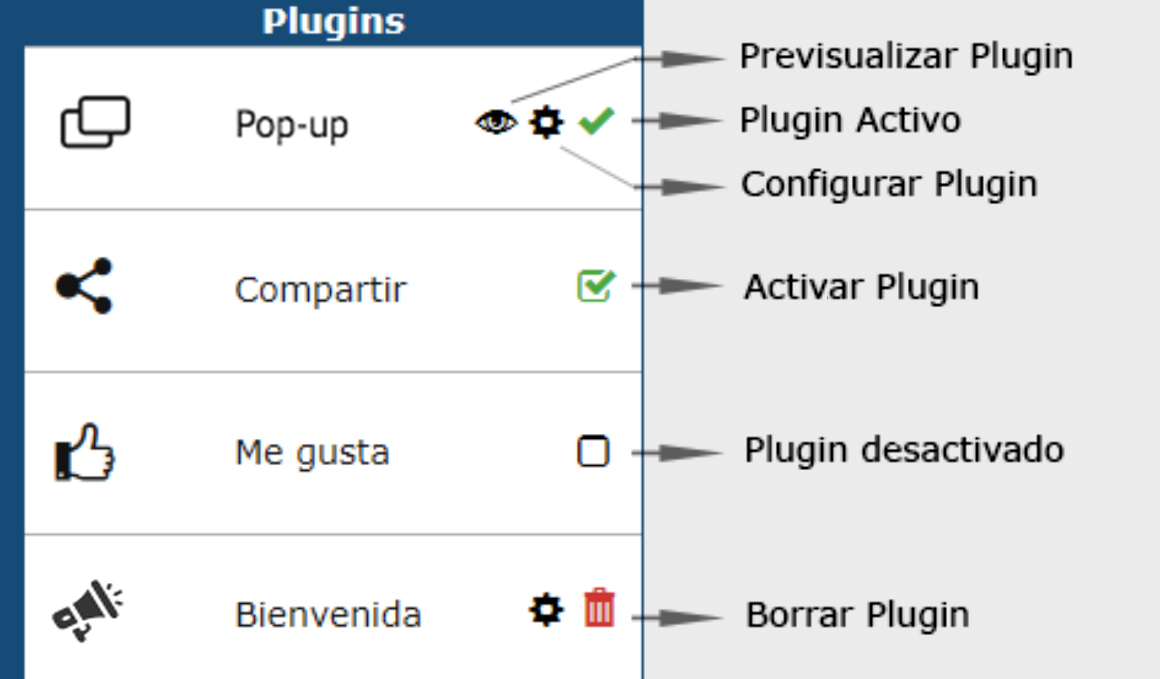 Plugins, leyenda de iconos de gestión.
 Pop-up: Defines an image or video that will appear full-screen on the user’s device. It includes the following parameters:
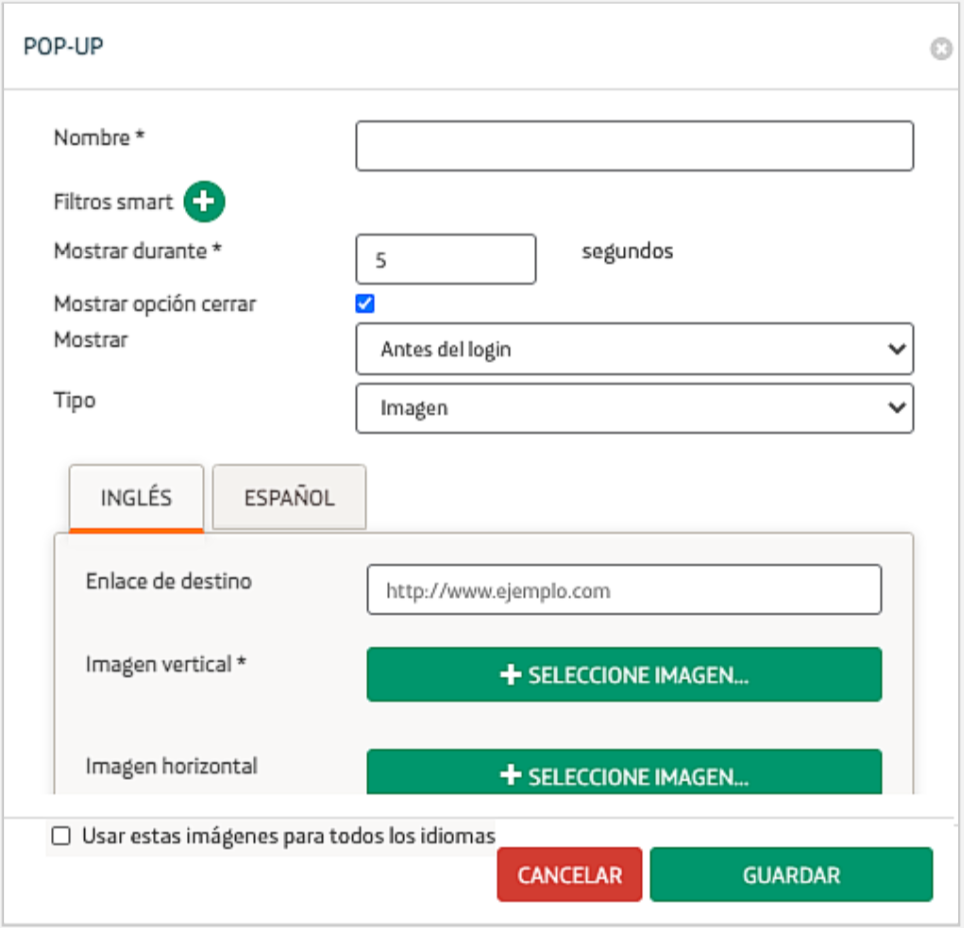 PopUp plugin options.
-
-
- Name: Assigns an identifier to the plugin.
- Smart Filters: Adds filters and rules that determine when and to whom the Pop-up is shown.
- Show for X seconds: Sets the duration of the Pop-up. If a video is used, this parameter indicates the minimum playback time required.
- Show close option: Enables or disables the option to close the Pop-up window.
- Display: Selector to define whether it will be shown before login (the pop-up appears instantly upon loading the portal) or after login, in the step immediately preceding internet access.
- Type: Sets the Pop-up format. It can be an image or a video. The video format is only configurable for pop-ups shown «After login.»
- Link: Destination URL in case the user clicks on the Pop-up.
- Vertical Image: For image-type pop-ups, sets the image to be displayed on devices in portrait orientation.
- Horizontal Image: For image-type pop-ups, sets the image to be displayed on devices in landscape orientation.
- Video: For video-type pop-ups, sets the URL where the video is hosted. Supports MP4, Ogg, and Webm formats, as well as videos hosted on platforms like YouTube, Vimeo, Vine, Ustream, etc.
-
 Share: The Share plugin offers users the possibility to share a predefined post on their social networks (Twitter or Facebook). This post consists of text, an image, and a link, allowing the user to choose their preferred image from three previously defined options.
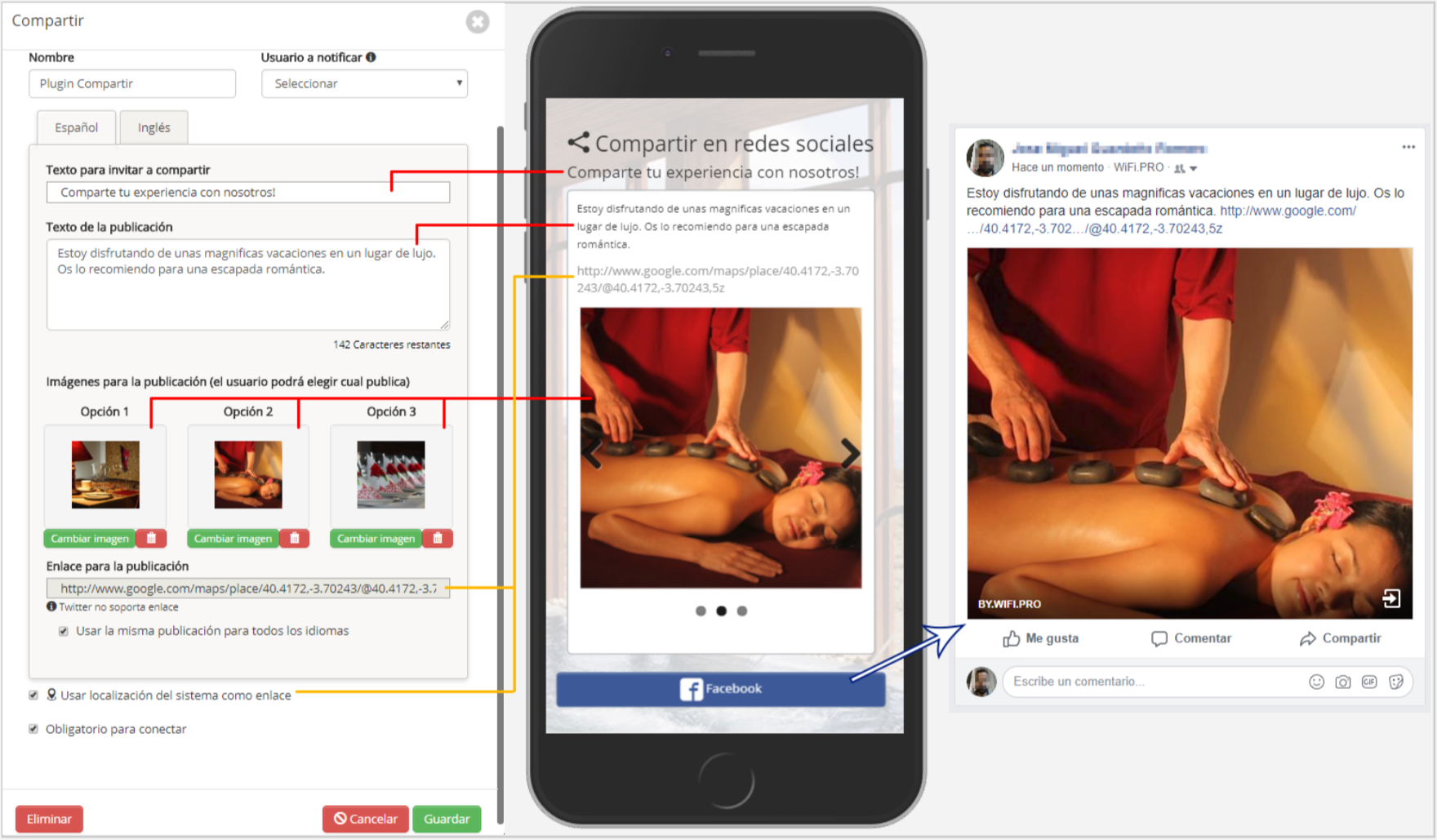 Share, options.
-
-
- Name: Assigns an identifier to the plugin.
- User to notify: Specifies a user to be notified when a post is made on social networks.
- Invitation to share text: Defines the text that will be displayed on the portal inviting the user to share the predefined post on their social network.
- Post text: Defines the text the post will contain. This text cannot be edited by the user attempting to connect to the WiFi network.
- Images for the post: Up to 3 images can be set for the user to choose which one to publish on their wall along with the text.
- Post link: Defines the URL that will be added as a link after the post text.
- Use site location as link: This option inserts the Google Maps geolocation configured for the site under the «Location» option as the link.
-
 Like: Allows users to «Like» a Facebook page directly from the portal. By entering a valid Facebook page URL in the previewer, the plugin will load that specific page.
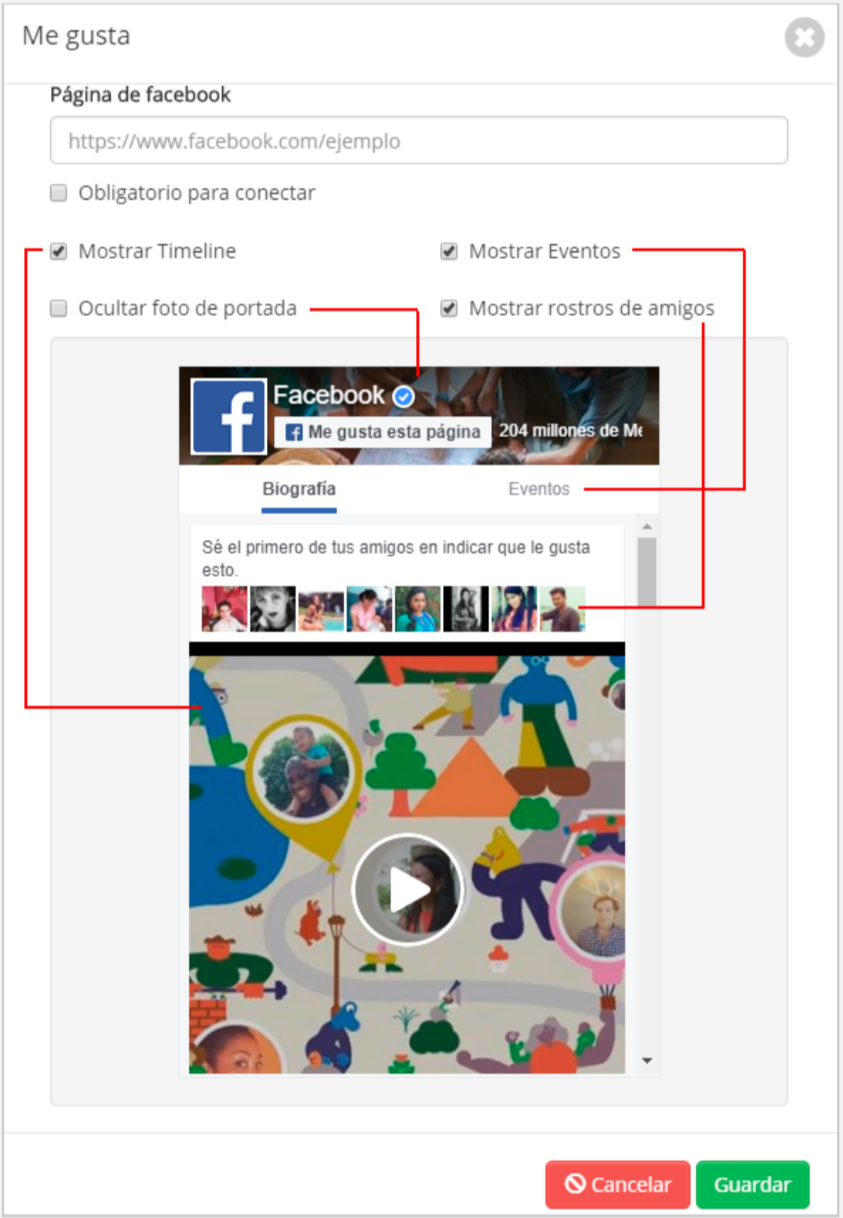
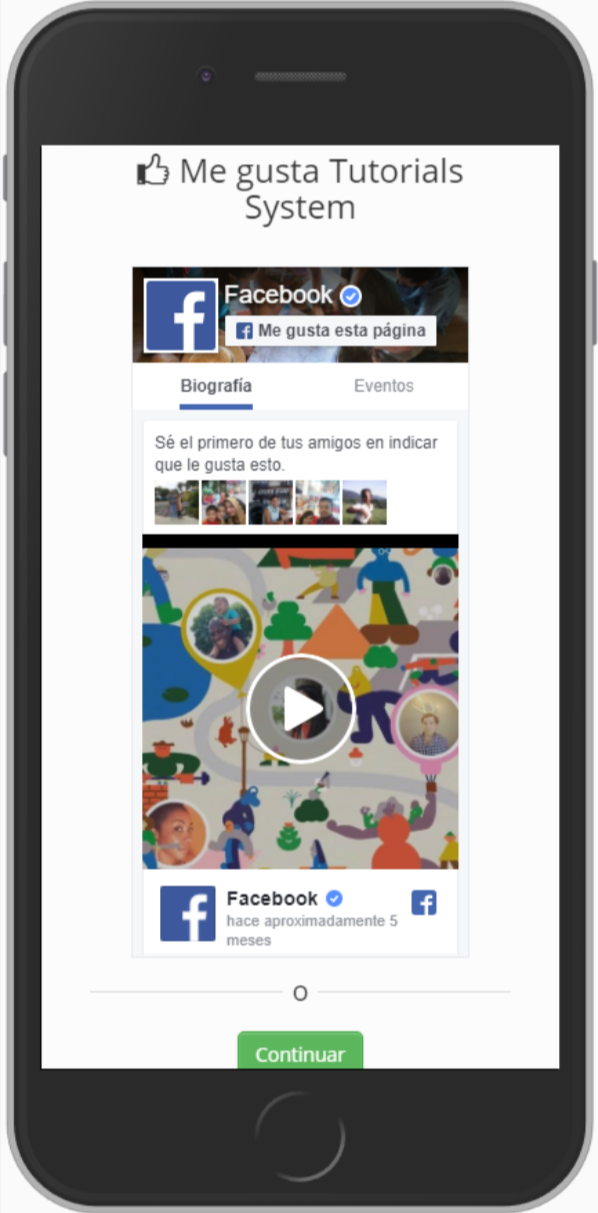 Like, options.

Welcome: Activates and configures the message informing the user that the login process has been completed successfully and that they now have connectivity with internet access. Multiple welcome pages can be set, each with its own filters, so that a personalized welcome page is shown based on the data obtained during the user’s login process.
-
- Name: Plugin identifier for later reference in statistics.
- Smart Filters: The plugin is capable of utilizing Smart filters.
- Link: Sets a web address for the banner (image or text) or a redirection after a 5-second delay.
- Type: Selector for the type of content to be displayed. You can set an image, text, or a direct redirection to the specified link (after a 5-second pause).