
The «Portals» module is accessed from the «Tools» menu by selecting the «Portals» option. A site must have been previously selected.
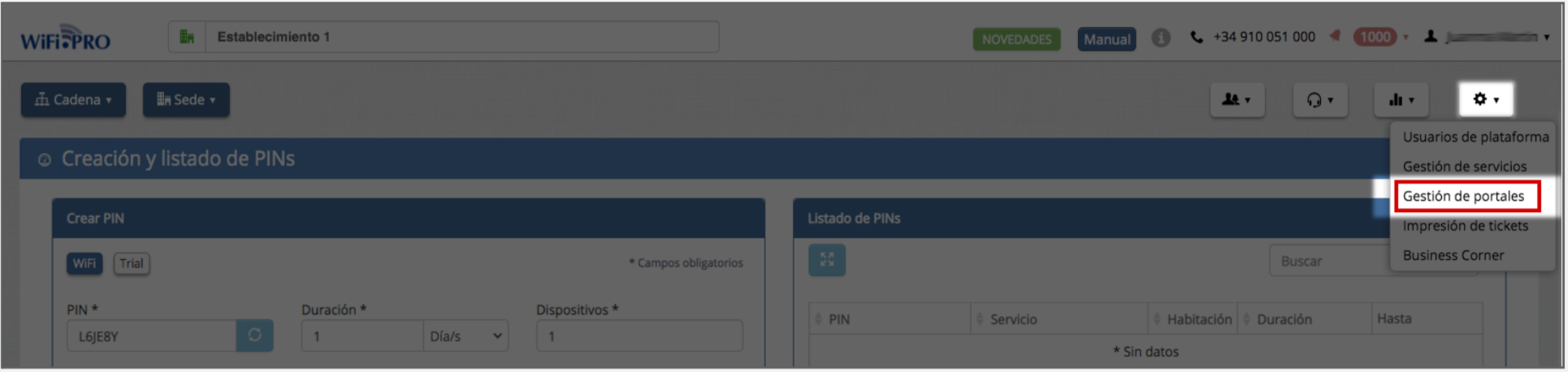 The “Portals Management” option from the “Tools” Menu
By default, a WiFi portal has already been created and preconfigured.
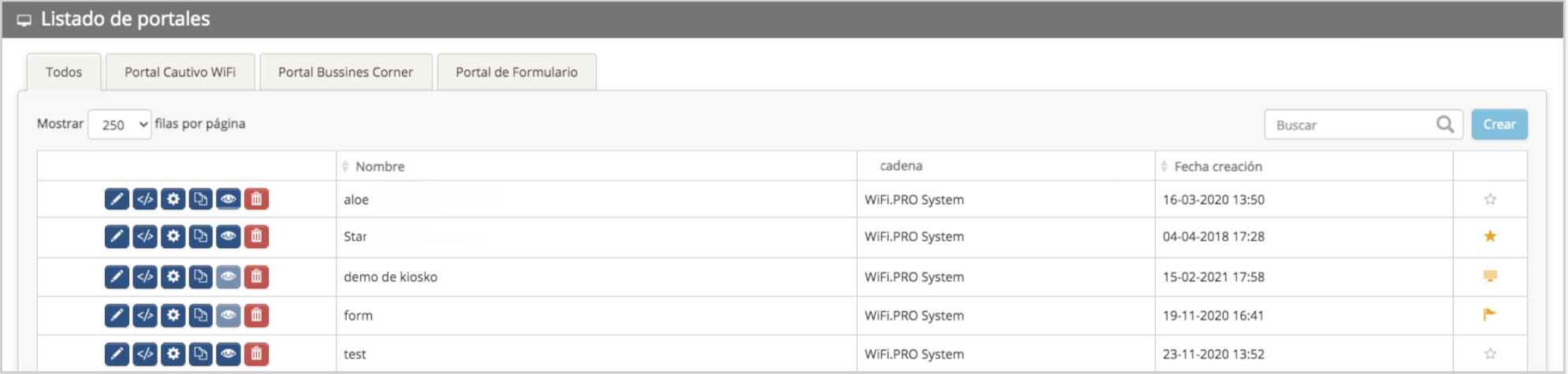 Portal list view. Portals highlighted in yellow are activated.
Action buttons for each portal:
 Edit Portal: Accesses the portal design module to make any changes to the appearance, login type, or characteristics.
 Configure Portal: Allows you to change the portal name and its languages.
 Copy Portal: Creates an exact copy of the portal. Useful for working on an existing portal without modifying the original.
 Preview: Opens the portal preview module to simulate the final look of the portal and how it would appear on different devices.
 Delete Portal: Permanently deletes a portal.
Portal type and status:
WiFi Portal Form Portal
  Business Corner Portal
The yellow color  indicates that it is active and, therefore, is the portal that users will see. You can activate or deactivate it by clicking on the icon. You can create as many portals as you wish, but only one can be active at a time.
The “Create” button opens the “Create a site portal” window.
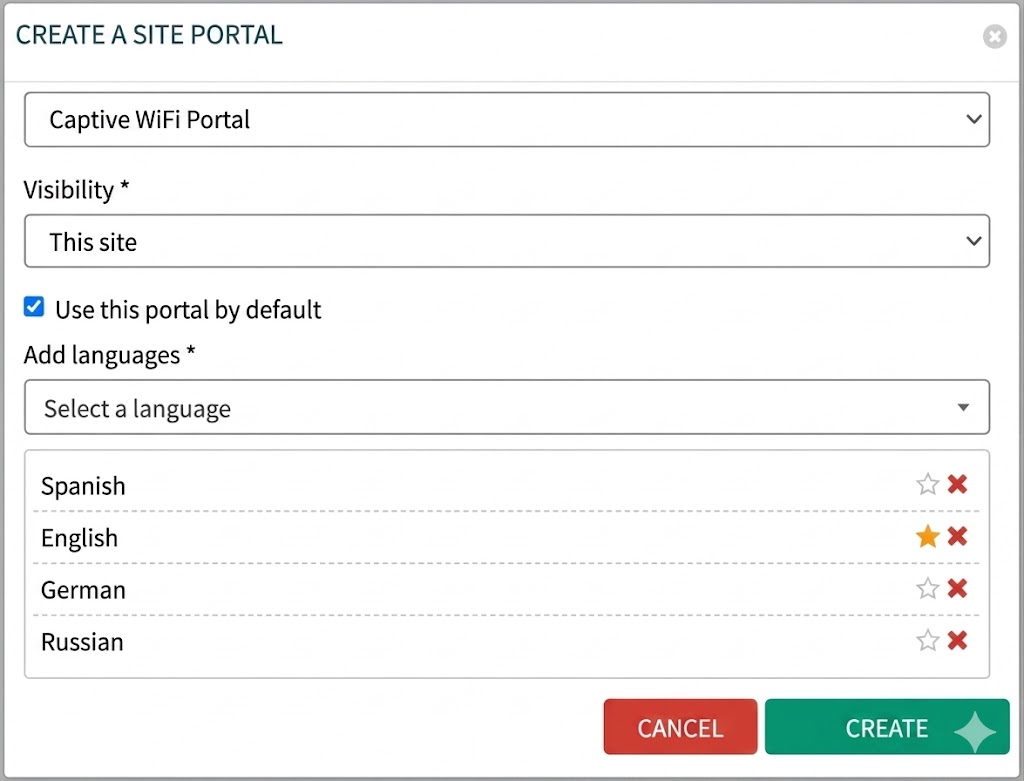
Name: This is an identifier. It is the name used to identify the portal within the portal list.
Type: Defines the type of portal being created: WiFi / Form / Business Corner.
Visibility: Defines the environment or visibility of the portal being created. It can be a «Chain» portal or an independent «Site» portal.
Add Languages: The WiFi.PRO platform automatically detects the browser’s language and displays the portal in that language. If the specific language has not been activated, the default language will be shown. The first language added will be set as the default, although this can be modified later.
Use portal by default: When creating a portal, you can set it as the default portal that users will see when connecting to the WiFi. Alternatively, it can be created and left deactivated for later activation or for design testing without affecting the actual user experience.